
How to Use Comparison Tables
TableX provides two flexible ways to display feature comparison tables, allowing you to showcase plan differences and help users make informed purchasing decisions.
Available Comparison Table Options
TableX offers the following methods for displaying comparison tables:
- Comparison Feature inside the Pricing Table widget
- Separate Comparison Table widget
Choose the option that best fits your website layout and pricing strategy.
Using the Comparison Feature in the Pricing Table Widget
The Pricing Table widget includes a built-in comparison table feature that automatically connects with your pricing plans.
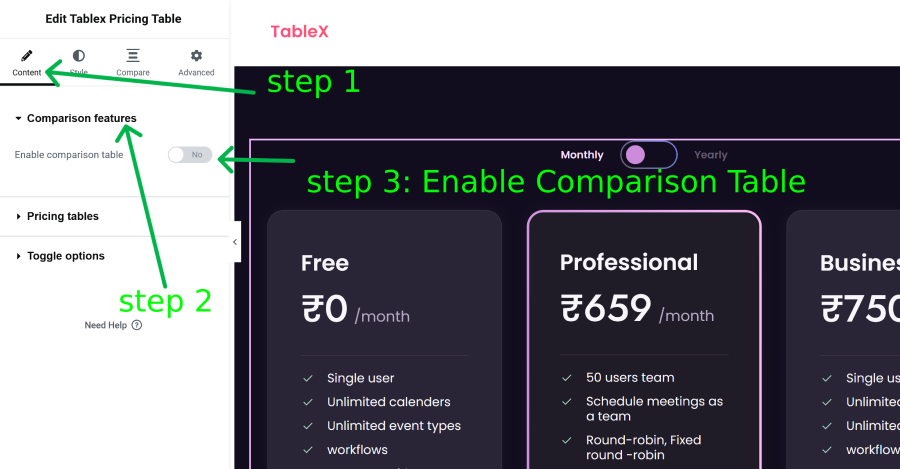
Enable the Comparison Table
- Edit your page with Elementor.
- Open the TableX Pricing widget.
- Navigate to the widget settings.
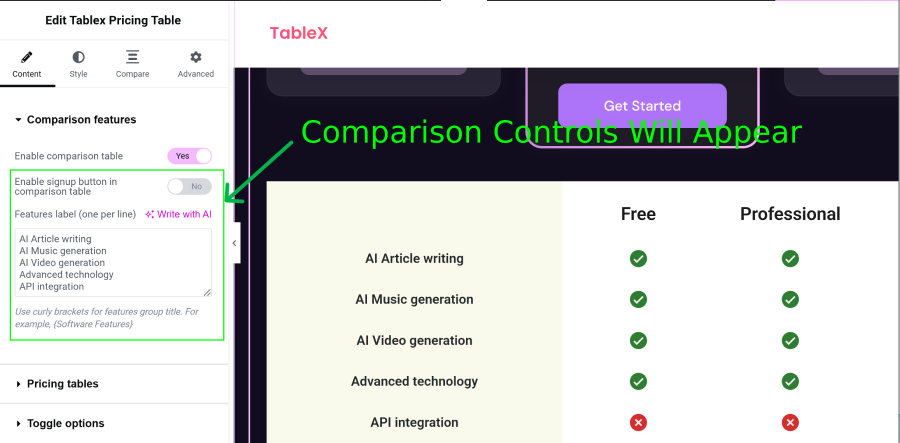
- Enable the Comparison Table option.
- Update the page to apply the changes.
Key Features
When the comparison feature is enabled:
- The comparison table is automatically linked to your pricing plans.
- Monthly and yearly pricing links remain synchronized with the corresponding pricing plans.
- Changes made to pricing button links are automatically reflected in both the pricing table and comparison table.
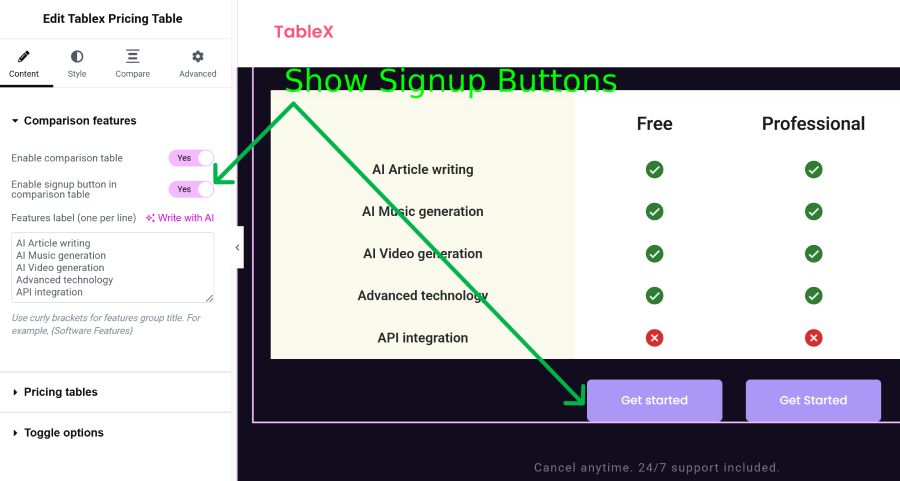
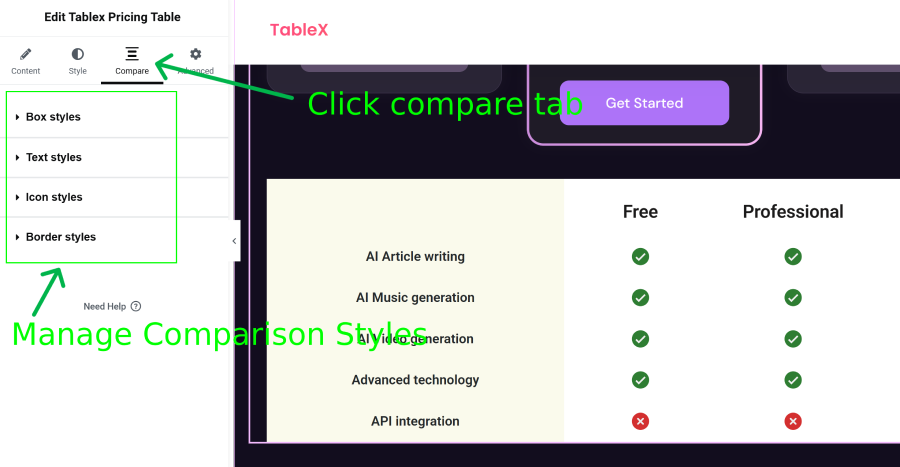
- Plan details and feature comparisons are displayed together in a unified layout.
- Visitors can easily compare plan features before making a purchase decision.
Benefits
Using the built-in comparison table is ideal when you want to:
- Display pricing plans and feature comparisons together.
- Maintain consistent button links across pricing and comparison sections.
- Reduce setup time with automatic synchronization.
- Create a streamlined pricing experience for visitors.
Using the Separate Comparison Table Widget
TableX also includes a dedicated Comparison Table widget for users who prefer to display feature comparisons independently from pricing tables.
When to Use the Separate Widget
The standalone Comparison Table widget is useful when:
- You want to display feature comparisons on a separate section or page.
- You need greater layout flexibility.
- You want to compare products, services, or plans without displaying pricing information.
Separate Comparison Table Setup Guide
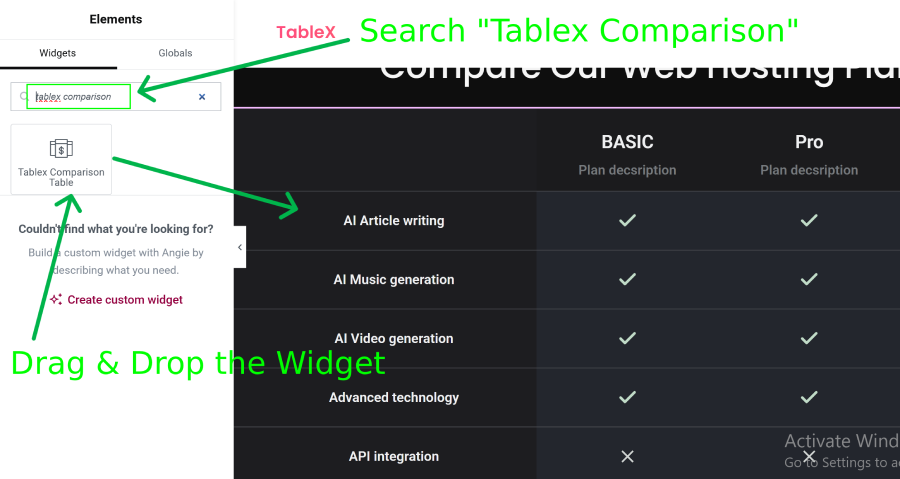
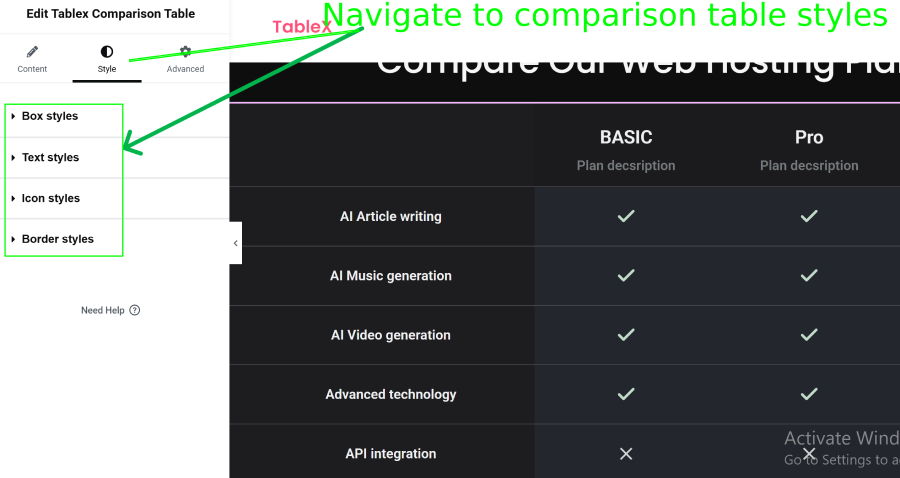
- Drag and drop the TableX Comparison Table widget into the page.
- Display only comparison features without pricing cards.
- Set monthly and yearly button links manually.
- Useful for dedicated feature comparison sections.
Result
Whether you use the built-in comparison feature or the standalone widget, TableX makes it easy to create professional comparison tables that help visitors evaluate features and choose the most suitable plan.