
Customizing Pricing Table Design
TableX provides extensive styling options to help you create visually appealing pricing tables.
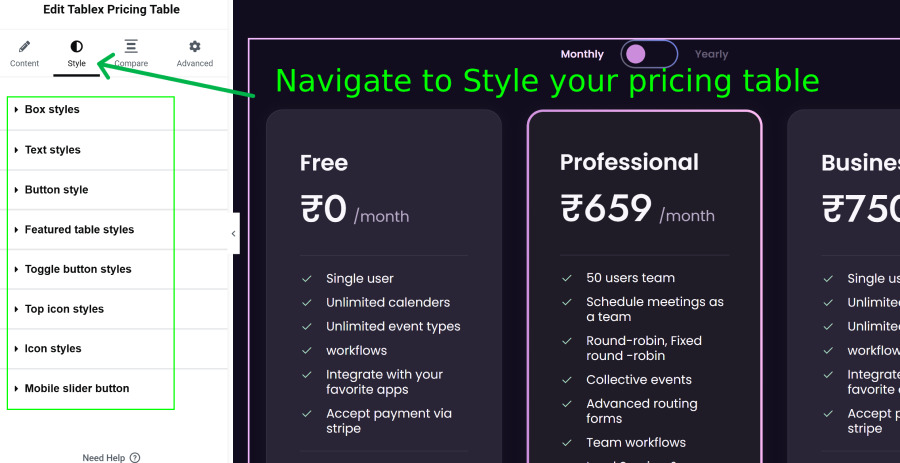
Access Design Settings
- Open the Style tab in the widget settings.
- Expand the desired styling section to customize the appearan
Box Styles
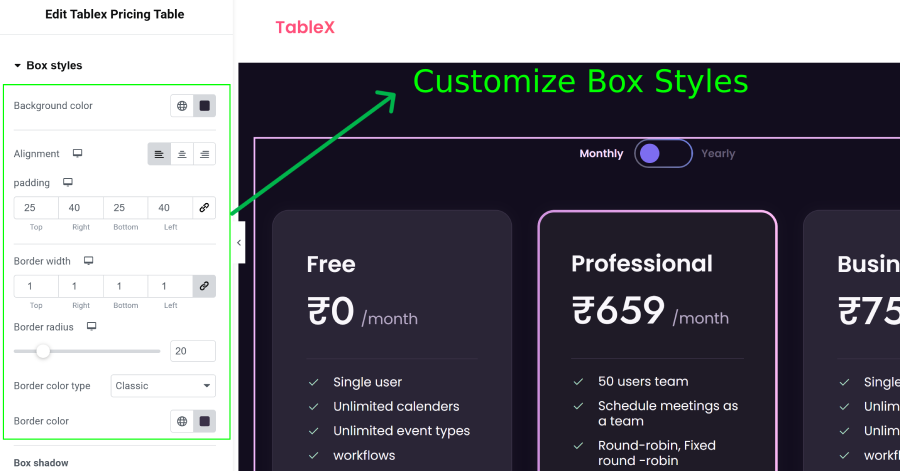
Customize the overall pricing table container, including:
- Navigate to the Box Styles section.
- Customize the normal pricing plan box styles, including:
- Background Color
- Border Width
- Border Color
- Border Type
- The same box styling options are also available in the Featured Table Styles section for featured pricing plans.
- Use the featured plan styles to create a unique highlighted pricing plan design
- You can also customize the featured plan separately from normal pricing plans.
Additional Options for Normal Pricing Plans
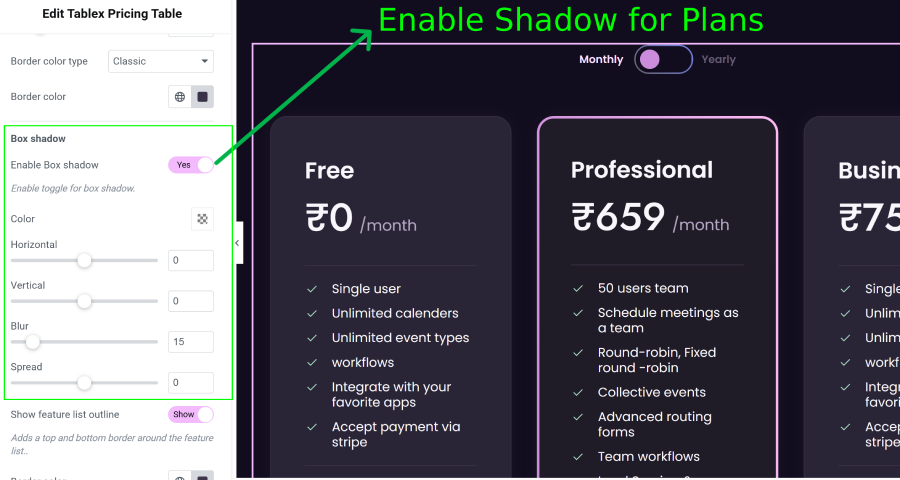
- Box Shadow
- Content Alignment
- Box Padding
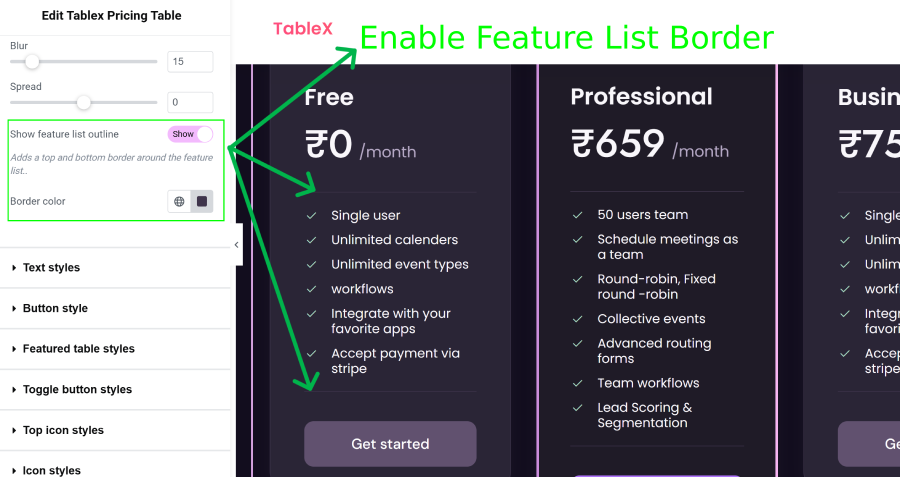
- Enable Feature List Outline Border
Text Styles
Control the appearance of text elements:
- Typography
- Font size
- Font weight
- Text color
- Spacing
Button Styles
Customize call-to-action buttons:
- Background color
- Text color
- Border styles
- Border radius
- Hover effects
Featured Table Styles
Highlight a specific pricing plan by customizing:
- Featured badge
- Background appearance
- Border styles
- Visual emphasis settings
Toggle Button Styles
Customize the Monthly/Yearly pricing switch:
- Colors
- Typography
- Background styles
- Active state appearance
Icon Styles
Modify pricing table icons:
- Icon size
- Icon color
- Alignment
- Spacing
Top Icon Styles
Customize the header icons displayed above pricing plans:
- Icon size
- Background color
- Border radius
- Positioning
Mobile Slider Navigation
Optimize pricing tables for mobile devices by customizing:
- Navigation buttons
- Arrow icons
- Button spacing
- Responsive slider appearance
After making your changes, click Update to apply the customized design to your pricing tables.