
Why Use Bunny.net for Video Streaming?
Bunny.net helps you:
- Protect your video files from direct downloading
- Stream videos securely to authorized users only
- Use expiring, token-based secure URLs
- Deliver fast video playback worldwide
BookChoix supports Bunny.net secure video streaming by default. If you do not already have a Bunny.net account, you can create one for free at: https://bunny.net
PART 1: Configure Bunny.net Stream Settings (Video)
Step 1: Login to Bunny.net
- Open https://bunny.net
- Login to your Bunny.net account
- Go to the Dashboard
Step 2: Create a New Video Library
- From the left menu, click Stream
- Click Add Video Library
- Enter a library name
(Example: BookChoix Video Library) - Choose the Storage Region closest to your customers
- Click Create Library
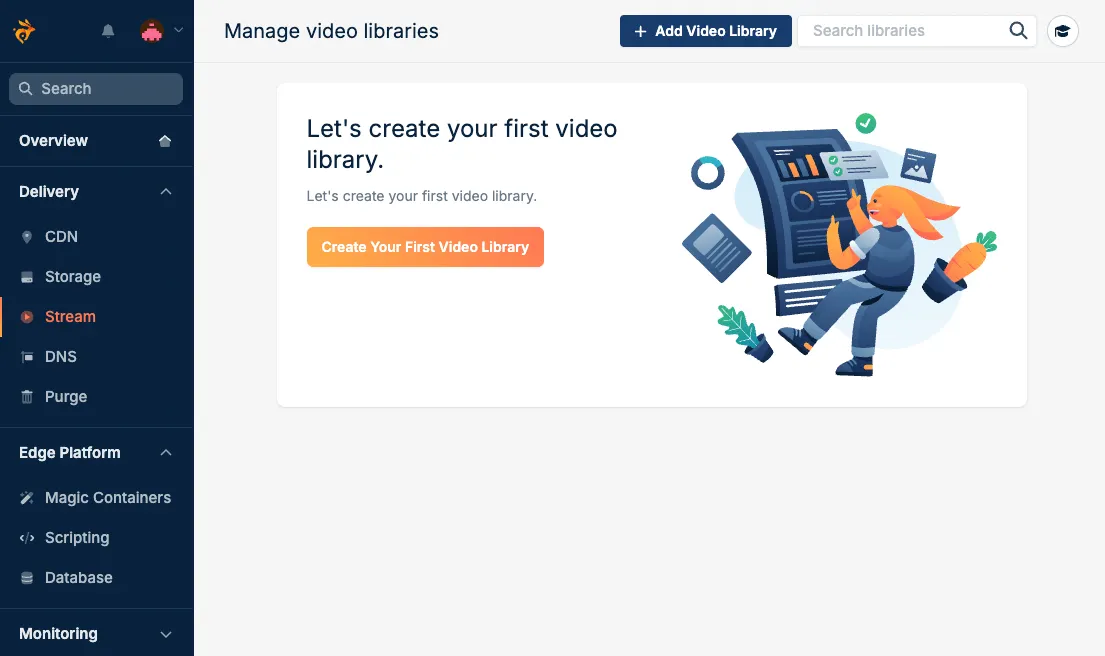
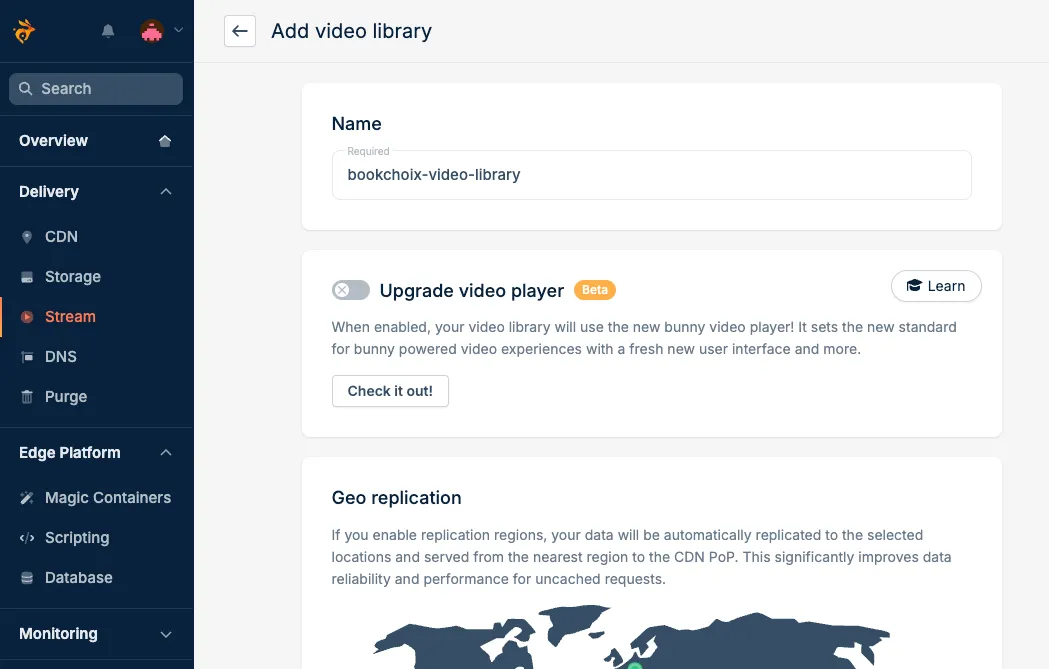
This library will store all your video book files.
Recommended Security Settings
Inside Security & Privacy, enable the following:
- Token Authentication → ON
- Allowed domains (optional) → Enter your website link
- Disable Direct Play → ON
- Block Direct URL File Access → ON
These settings ensure:
- Videos cannot be opened directly
- Links expire automatically
- Users cannot share or reuse video links
Step 3: Enable Secure Token Authentication
- Open your newly created Video Library
- Go to Settings
- Open Security & Privacy
- Enable Token Authentication
- Click Generate and Copy the Token Key
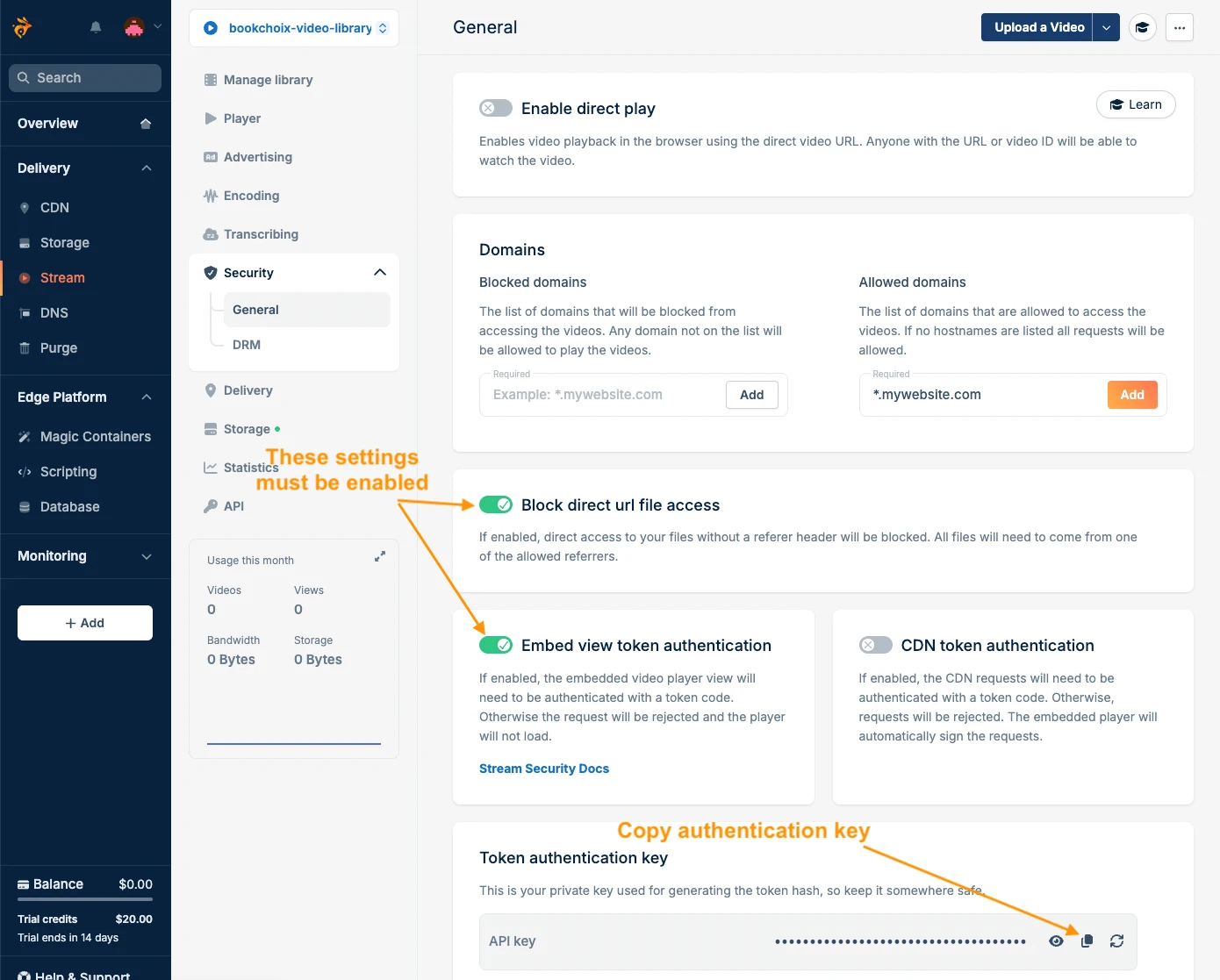
Important note:
This Token Key is required by BookChoix to generate secure video URLs.
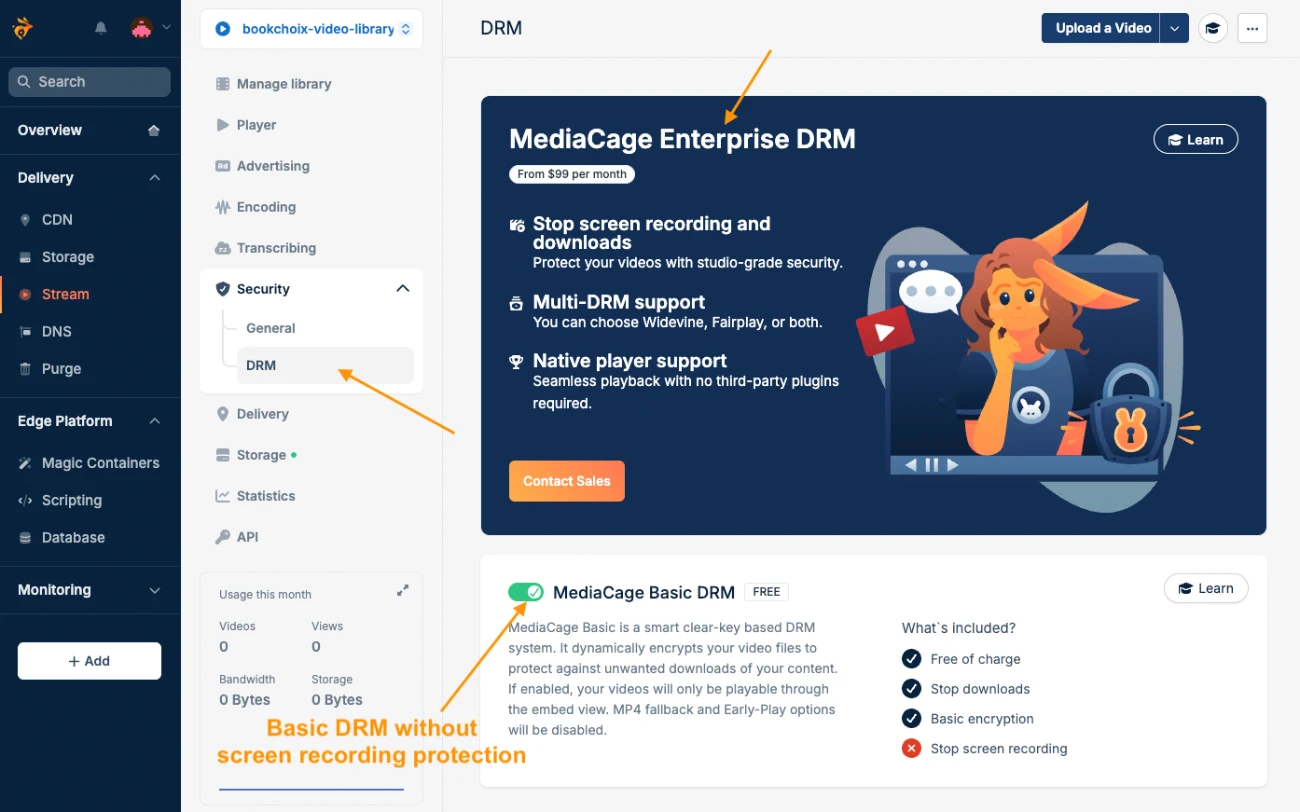
Step 4: Enable MediaCage DRM (Optional but Recommended)
- Go to Settings → Security → DRM
- Enable MediaCage DRM ( MediaCage DRM – Basic or Enterprise)
Note:
- DRM adds an extra layer of protection
- DRM does not affect normal video playback inside BookChoix Theme
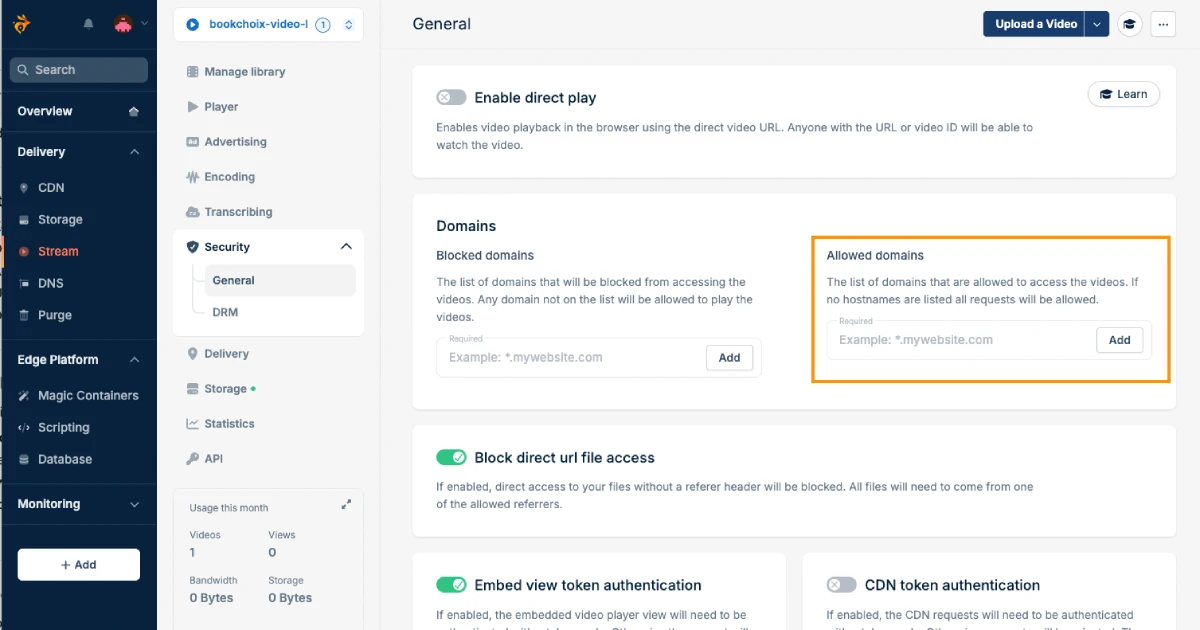
Step 5: Configure Allowed Domains
- Inside the Video Library
- Go to Settings → Security & Privacy
- Find Allowed Domains
What is “Allowed Domains”?
- This is the list of websites that are allowed to play your videos
- Only domains listed here can access the videos
How to configure it correctly:
- Add your website domain
Example:
 Step 6: Upload Your Video Files
- Open your Bunny.net Video Library
- Click Upload
- Upload your video files
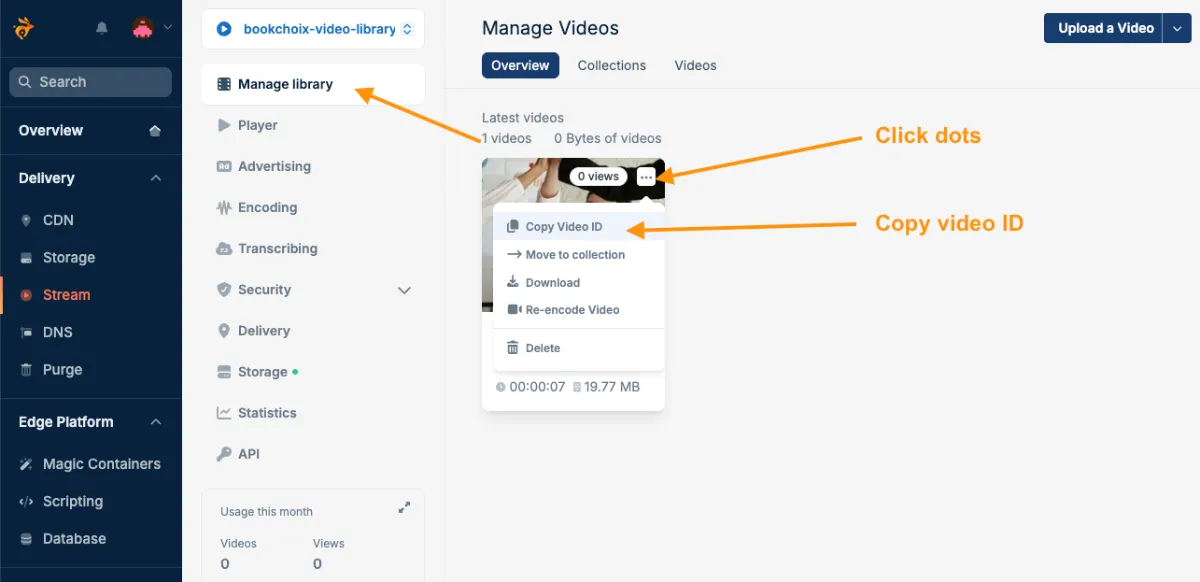
(Recommended formats: .mp4 and, .webm) - Wait until processing is completed
- Copy the Video ID as shown in the below image.
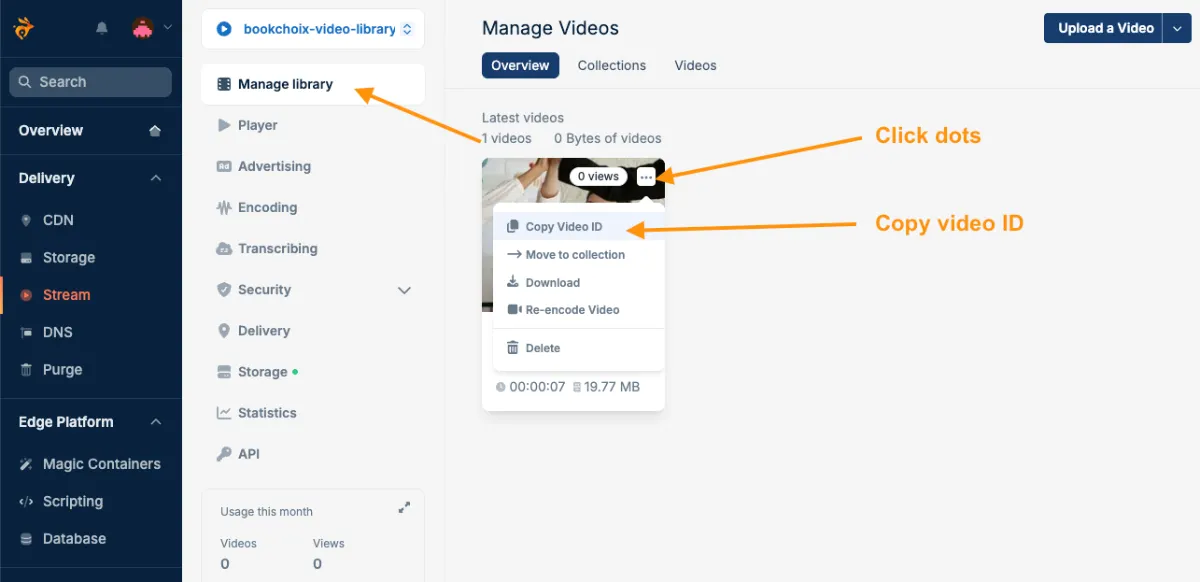
Bunny.net will generate a secure stream URL for each video.
PART 2: Add Bunny.net Stream Key to BookChoix Options
Step 7: Open BookChoix Options
- Login to WordPress Admin
- Go to Appearance → BookChoix Options → Shop Settings →Bunny.net settings
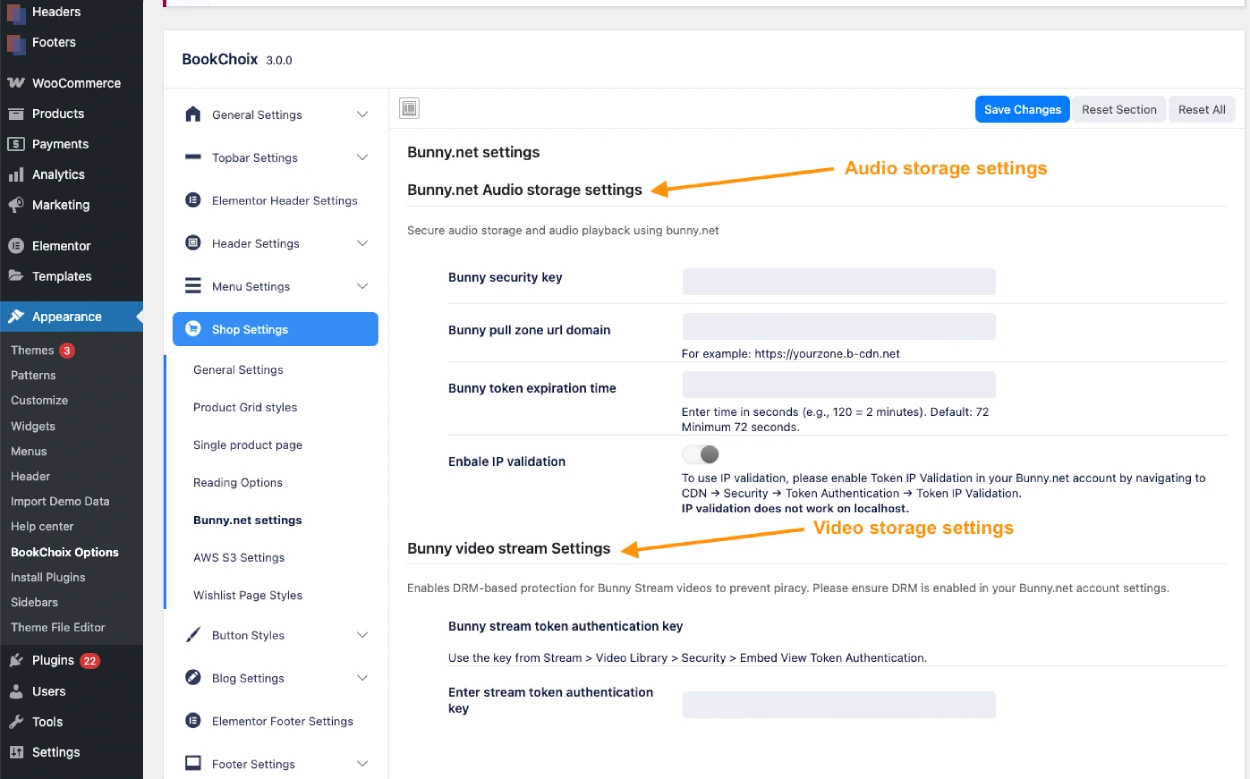
Step 8: Enter Bunny.net Video Stream Key
- Find the field Bunny.net Stream token authentication key
- Paste the Token Key copied from Bunny.net in step 3
- Save the settings
This allows BookChoix to generate secure, expiring video URLs automatically.
PART 3: Add Secure Video URLs to WooCommerce Products
BookChoix uses custom product meta fields for video books.
Step 9: Edit Your Video Book Product
- Go to WooCommerce Products → All Products
- Edit your video book product
- Scroll down to the Product data → BookChoix Add Book Attachments → select book type as “Video Book” → Select “Bunny stream” as video source.

Step 10: Add Main Video Book (Paid Video)
- Find Add your Main video book
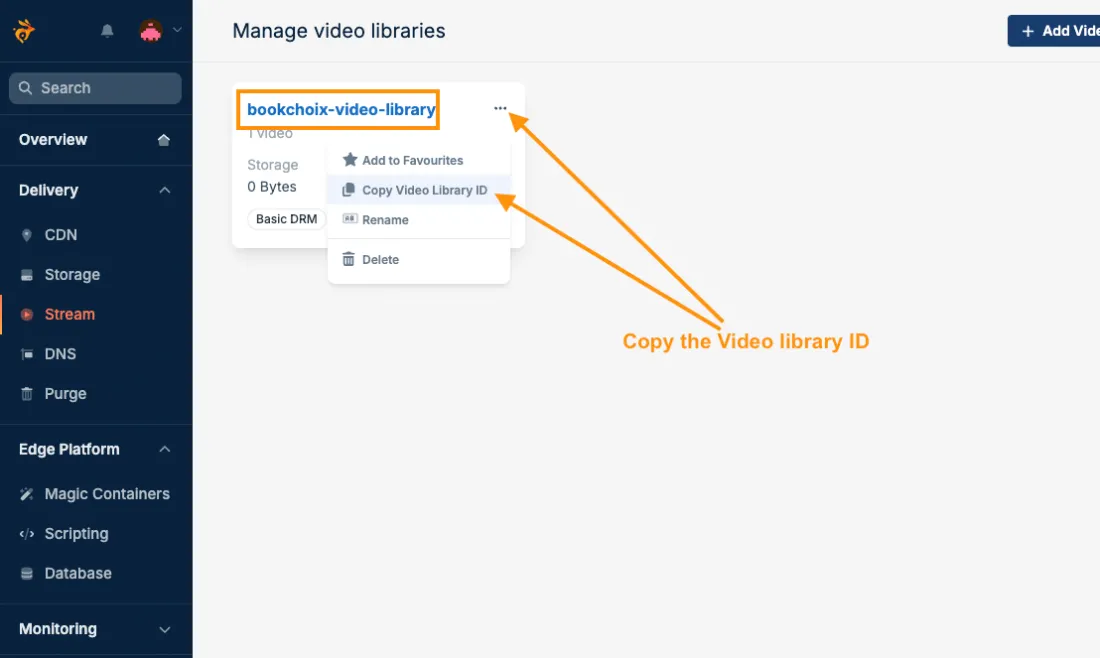
- Copy & paste the Video library ID from your bunny.net dashboard to the Library ID field.
- Copy & paste the Video ID from your bunny.net dashboard to the Video ID field.
- Save the product
This video:
- Is accessible only after purchase
- Uses secure, expiring access and IP restricted
- Cannot be downloaded or shared
Step 11: Add Preview Video Book (Free Sample)
- Find Add your Preview video book
- Copy & paste the Video library ID from your bunny.net dashboard to the Library ID field.
- Copy & paste the Video ID from your bunny.net dashboard to the Video ID field.
- Save the product
This video:
- Is accessible to all visitors
- Still protected by Bunny.net security
- Cannot be accessed directly
Important Security Notes
- Do NOT use raw file URLs
- Always use Bunny.net stream URLs
- URLs expire automatically
- Copying the link will not work later
- Videos cannot be accessed without permission
What Happens After Setup?
- Customers can stream purchased video books
- Video URLs are protected and time-limited
- Shared links will stop working
- Better protection against piracy
- Smooth playback inside BookChoix video player
Common Questions
Can customers download the video?
No. Bunny.net prevents direct video file access.
Can users share the video link?
No. Links expire, no direct access and are protected by token authentication.
Do I need technical knowledge?
No. Only copy and paste the required values.