
This guide helps you protect your audio books using Bunny.net and connect them correctly to your BookChoix theme website.
Please follow the steps in order. If you do not already have a Bunny.net account, you can create one for free at: https://bunny.net
PART 1: Set Up Bunny.net (Storage & CDN)
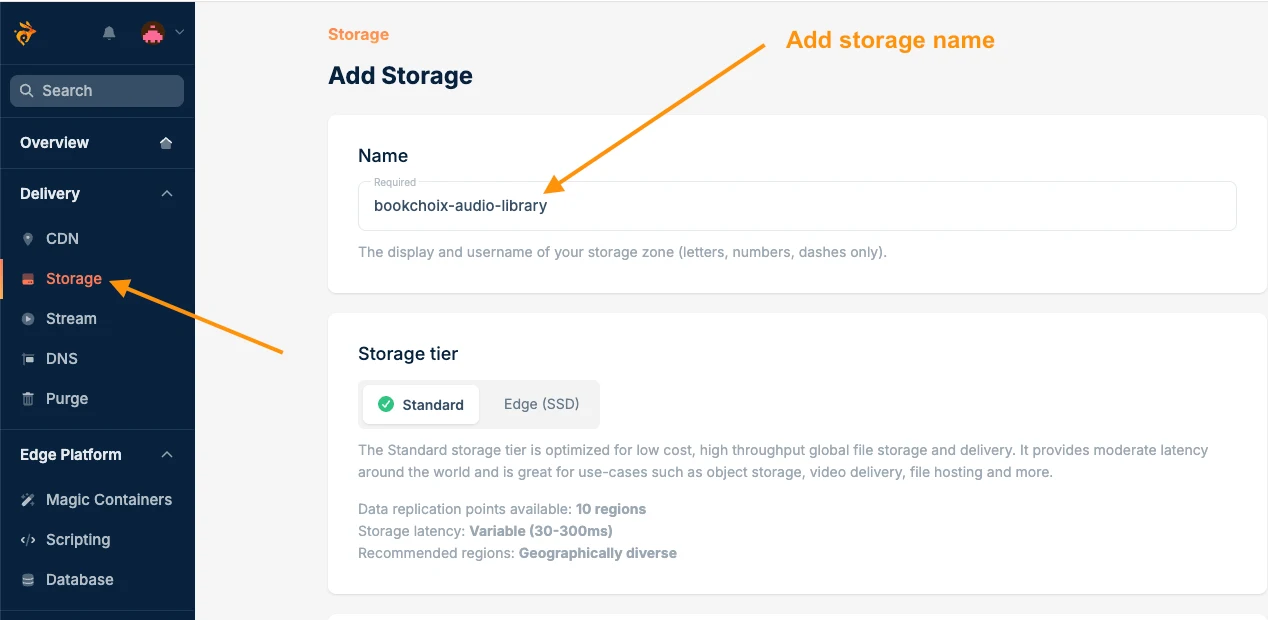
Step 1: Create a Storage Zone
A Storage Zone is like an online hard drive where your audio files are stored.
- Login to your Bunny.net Dashboard
- Click Storage from the left menu
- Fill in the details:
Name:
Example: bookchoix-files
Region:
Choose the location closest to your customers - Click Add Storage Zone
Step 2: Upload Your Audio Files
- Open your newly created Storage Zone
- Click Upload
- Create a folder called:
audiobooks - Upload your .mp3 audio files into this folder
Example file path:
/jane_fonda.mp3

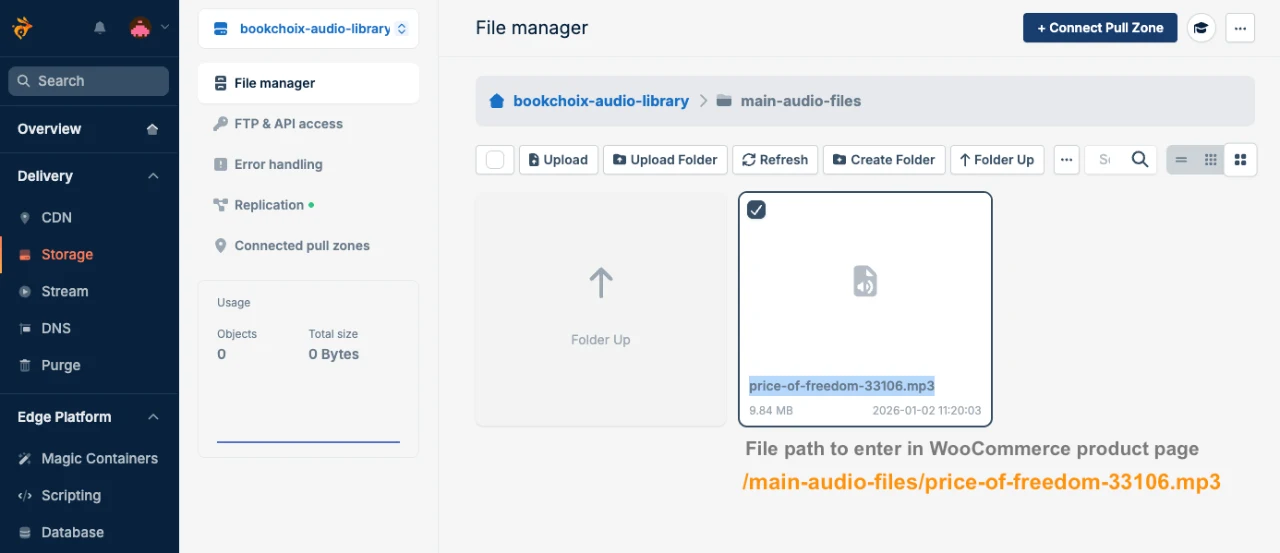
Example file path:
/main-audio-files/jane_fonda.mp3
Remember this path. You will use it later in WordPress.
Step 3: Create a Pull Zone (CDN)
A Pull Zone delivers your audio files to your website fast and securely.
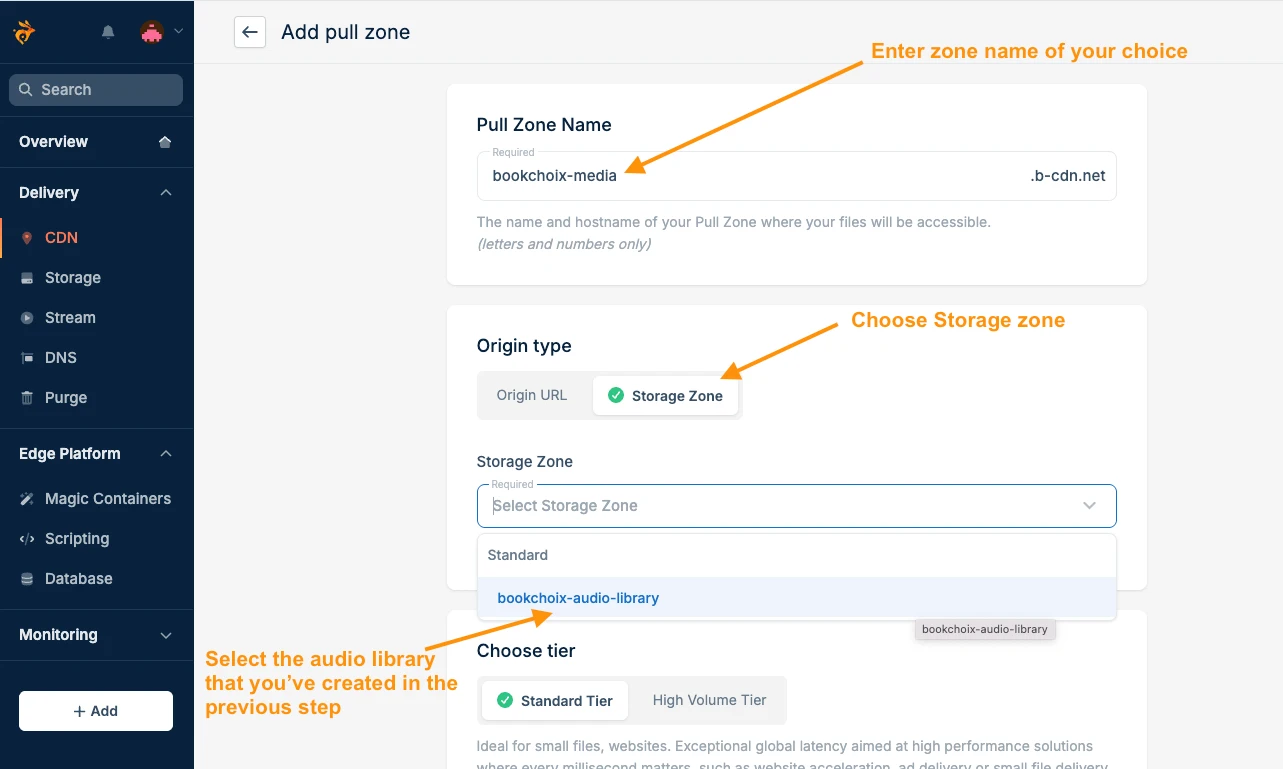
- Click CDN from the left menu
- Click + Add Pull Zone
- Fill in the details:
Name:
Example: bookchoix
Origin Type:
Select Storage Zone
Storage Zone:
Select the one you created earlier - Click Add Pull Zone
Bunny.net will now create a CDN URL like:
https://bookchoix.b-cdn.net
PART 2: Secure Your Audio (Anti-Theft Protection)
To stop people from stealing or sharing your audio, you must enable Token Authentication.
Step 4: Enable Token Authentication
- Open your Pull Zone
- Click Security from the left menu
- Click Token Authentication
- Turn ON → URL Token Authentication
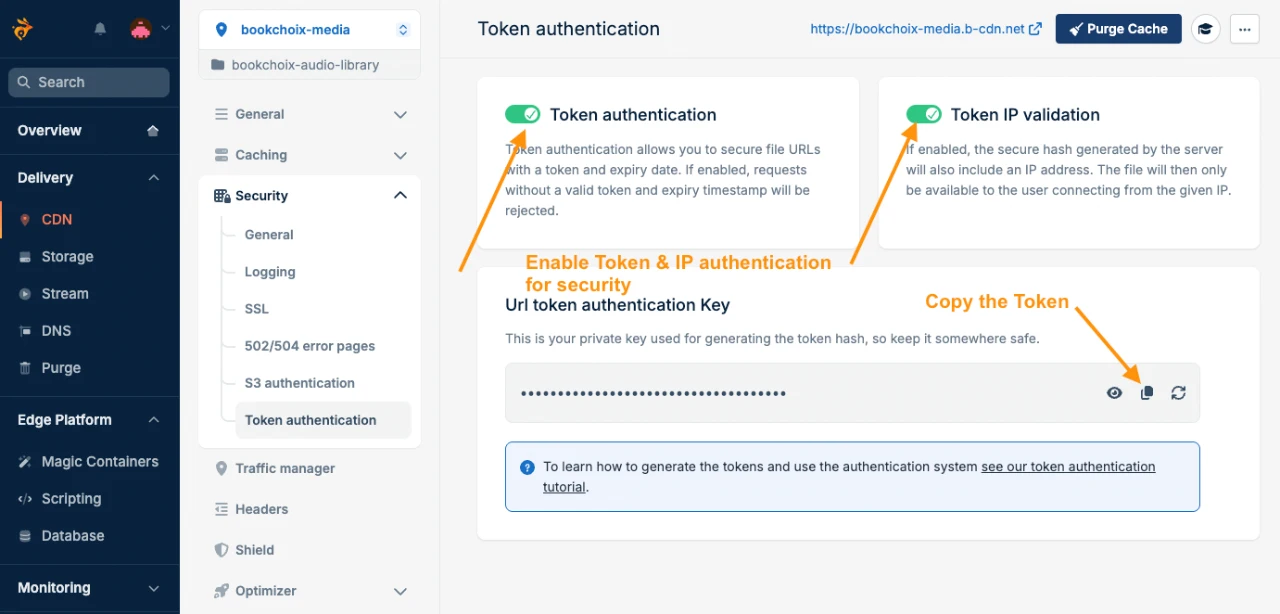
You will see a Security Key. Copy this key. You will paste it into WordPress later.
Step 5: (Optional) Enable IP Validation
- Enable IP Validation if you want audio to work only for the buyer
- If the link is shared with someone else, it will not work
This gives extra protection but may block users with changing internet connections.
PART 3: Configure BookChoix Theme (WordPress)
Now we connect Bunny.net with your BookChoix theme website.
Step 6: Open Theme Settings
- Login to WordPress Admin
- Go to:
Appearance → BookChoix Options →Shop settings → Bunny.net Settings - Under Bunny.net Audio Settings
Step 7: Fill in Bunny.net Details
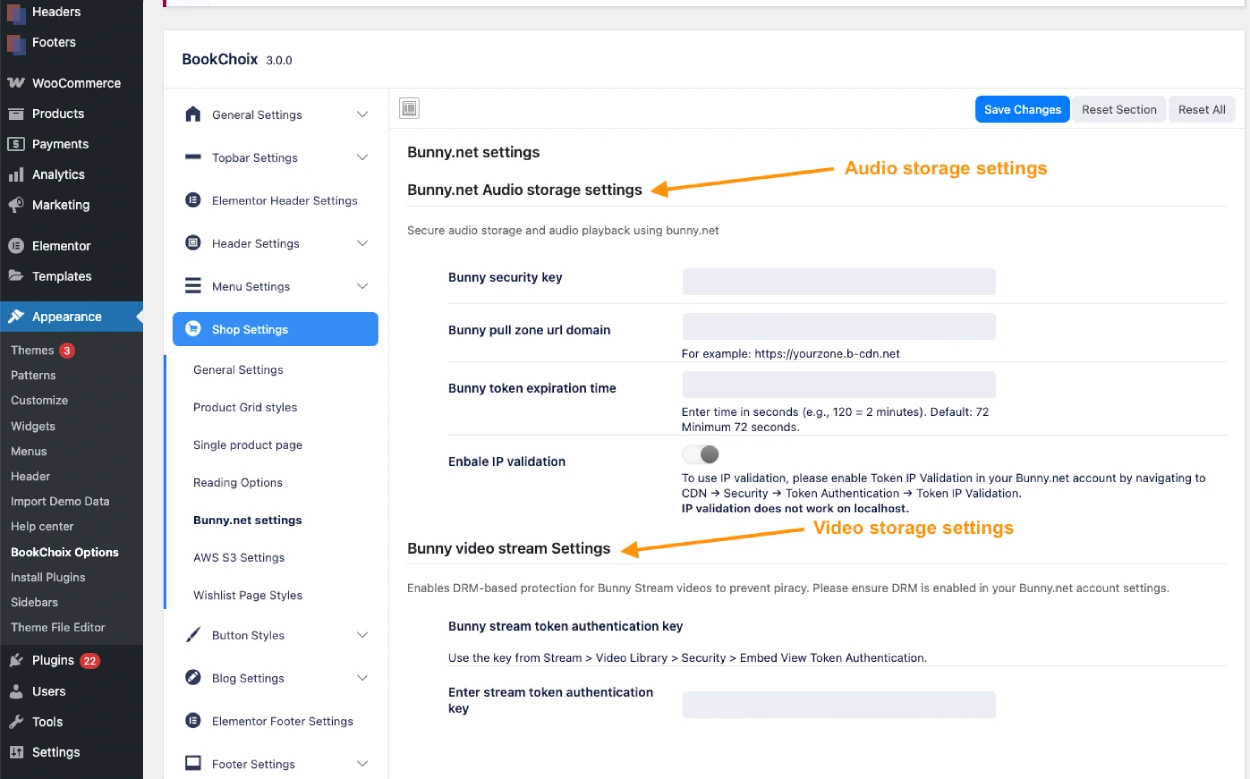
Enter the following:
- Pull Zone URL
Example:
https://bookchoix.b-cdn.net
- Security Key
Paste the key copied from Bunny.net - Token Expiration Time
Example:
3600
(This means the link works for 1 hour)
- Enable IP Validation
Set Yes only if you enabled it in your Bunny.net account - Click Save Changes
PART 4: Add Audio to WooCommerce Products
When creating or editing an Audio book product, you will see BookChoix custom fields.
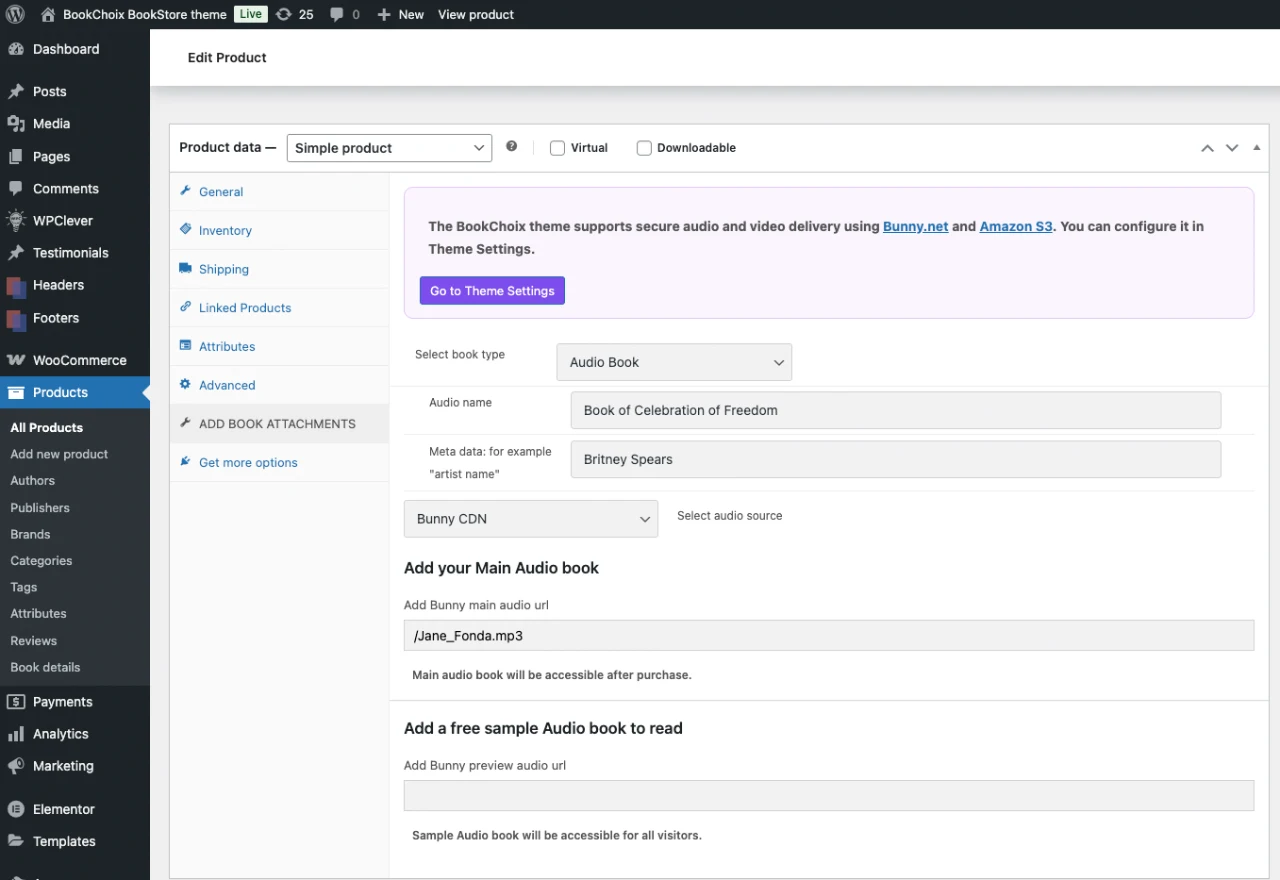
Step 8: Add the Main Audio book (Paid)
Find the field:
Add your Main audio book
Enter only the file path, not the full website URL.
✅ Correct:
/previewbooks/jane_fonda_full.mp3
❌ Wrong:
https://bookchoix.b-cdn.net/audiobooks/jane_fonda_full.mp3
Step 9: Add the Preview Audio (Free Sample)
Find the field:
Add your Preview audio book
Again, enter only the file path.
Example:
/mainbooks/jane_fonda_sample.mp3
Save the product.
Frequently Asked Questions (FAQ)
My audio is not playing. What should I check?
- Make sure the Security Key in WordPress matches Bunny.net
- Make sure the file path starts with /
- If you have created a folder in the Bunny storage, then the file path should be like /foldername/filename.ext otherwise the file path should look like /filename.ext
- Check the file name carefully
(Song.mp3 is different from song.mp3) -
Make sure the file exists in Bunny.net Storage
What does “Token Expiration” mean?
It controls how long the audio link works.
Example:
- 3600 = 1 hour
- After 1 hour, the link stops working
This prevents users from sharing the link with others.
What is IP Validation?
- It locks the audio to one internet connection
- If someone shares the link, it will not work
- Useful for extra protection
- Not recommended for users with unstable internet